How to use this website ?

Quote from ZIMME on June 21, 2026, 7:17 amIn this article, we will mention the features of this website. So that you can understand our website better and use it accordingly. Before we start, you should understand that an online store has 5 major stages to do your shopping:
(i) Register - First you make your account on the website, by (a) Register Here, (b) Login Here, (c) Forgot Password
(ii) Add to Cart - The second step is: (a) You select the product from product categories (or) search bar, (b) You select weight or quantity (called as variations) which are above or below the product, (iii) and you click on 'Add to Cart'. This adds your product to the Cart (or Shopping Bag)
(iii) Cart - It is the place, where all your added products are displayed. You can (a) increase or decrease the quantity of the product, (b) remove the products, (c) and apply coupon code to avail discount. You can view Cart here.
(iv) Checkout - This is the place where you add your details and confirm order. You can (a) Login to your account, (b) Add your name, mobile number, email and address, (c) Select 'Delivery Date' and 'Time Slot', (d) Create new account, if you are first time user (e) Apply discount coupon (f) Confirm payment method (g) Agree to Terms & Conditions, (h) and 'Place Order'. You can view Checkout Page Here.
(v) Once you click on 'Place Order' in checkout page. You get (a) Order ID, (b) Email Confirmation of your order, (c) Your invoice is generated (d) The delivery team is notified of your order. Your order will be further packed and delivery on the selected delivery date and time slot.
How to use this website ?
Below is the detail description of the features of this website. Which makes your shopping easy and hassle free.
1. Select Preference - Veg & Non-Veg
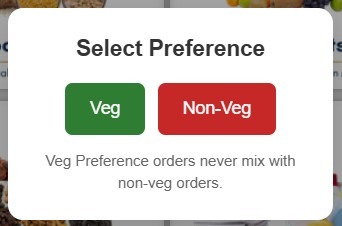
ZIMME™ website or mobile app starts with one important feature. And that is to Select Preference of Vegetarian Food or Non-Vegetarian Food in the Popup. Once you select the preference of Vegetarian (Veg) Food option, all non-veg options will be hidden from the website. We deliver Veg Preference orders separately to make sure that they do not mix with Non-Veg orders. We value and respect the choices of our customers and take at-most care to fulfill them.
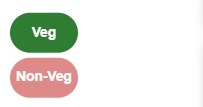
You can also change the Food Preference, by using the switch on left-center of the website, where there are two buttons 'Veg' and 'Non-Veg'. Your Food Preference is also shown on your 'my-account' page. Further, when you place an order, your food preference is shown in your confirmation email and also on the invoice. So the delivery executives take at-most care to make sure that Veg Preference orders are never mixed with Non-Veg orders.
2. Register / Login
The second step to use this website is to register. You can click on 'Login' in Main Menu (or) Click on 'Menu' on the top right in Mobile App and then go to 'Login'. On this page, you have option to Login & Register. If you are the first time user, then click on 'Register', fill the small form like username, email, phone number, password and click on 'Register'. You will be now successfully registered and ready to make the orders or use the forum.
Once you are registered, you can use the same username and password to login into the website. Incase you forget the login details, you can use the 'Forgot your password?' link to reset your password by entering your registered username or email. You can also click here to Register and click here to reset your Forgot Password
3. Product Categories
We have arranged products in respective Categories and Sub-Categories to make your shopping easy. You can find Product Categories in Main Menu, on Home Page, in the Sidebar of every page, and in the bottom of page in mobile view. You can always select the category and 'Add To Cart' the products of your choice.
4. Product Variations
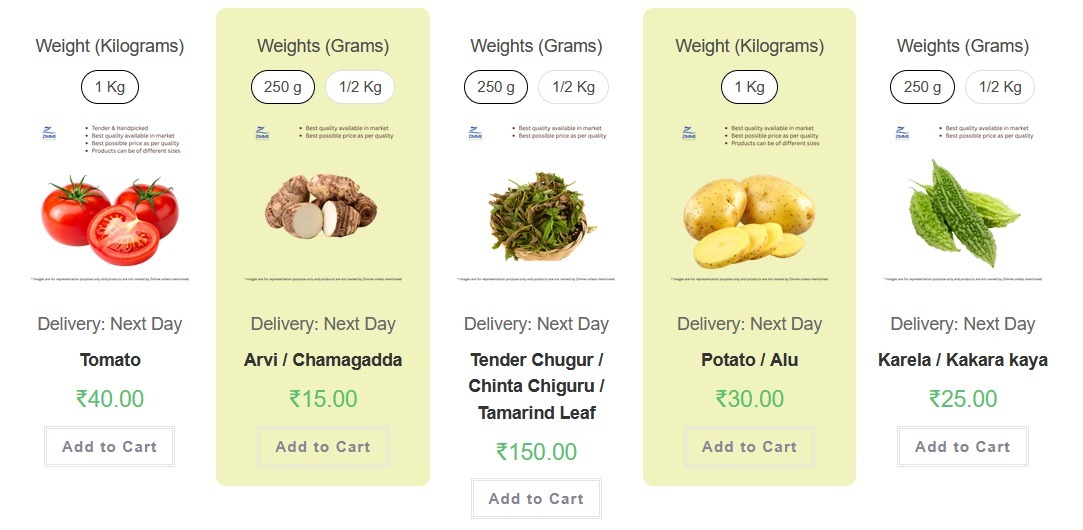
To make your shopping easy, we have made Products with variations like Weight & Quantity, based on the usual purchase trends of the customers. Every product is measured in different quantities like 250 grams, 1/2 Kg, 1 Kg etc.. which are called as product variations. These variations are shown above or below the product, so that you can easily select them and place the order. By default the lowest weight or quantity is selected. You can change it to the quantity of your choice.
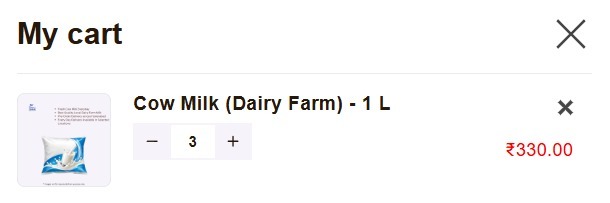
If the quantity you desired is not available in the variation, then you can simply add more quantity in Cart Popup (or) cart page. When you add a product, an automatic Cart Popup comes up. For example, you need milk of 3 litre. But in the variation, the maximum quantity is 1 Litre. You select 1 Litre and click on 'Add to Cart'. Now a Cart Popup opens on the rights side of the website or mobile app. In this Cart Popup or Cart Page, you can add 2 more Litre but clicking on the + sign for 2 times below the product. The 1 Litre variation is now changed to 3 Litres as shown in the image below
5. Products Search
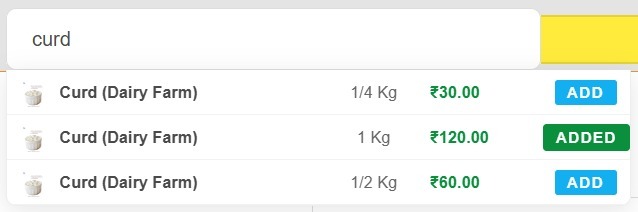
We have built a robust Product Search to ease your search for products on our website. Simply type the name of the product you are looking for, and you will get all the products and variations related to that product. Simply choose the product you want and click on 'Add' button. Your product is now directly added to cart. If you want more quantity of the same product click again on 'Added' button, each click increases one quantity. You can check and adjust quantity by clicking on the Cart icon button in the bottom right of this website.
6. Discount Coupons
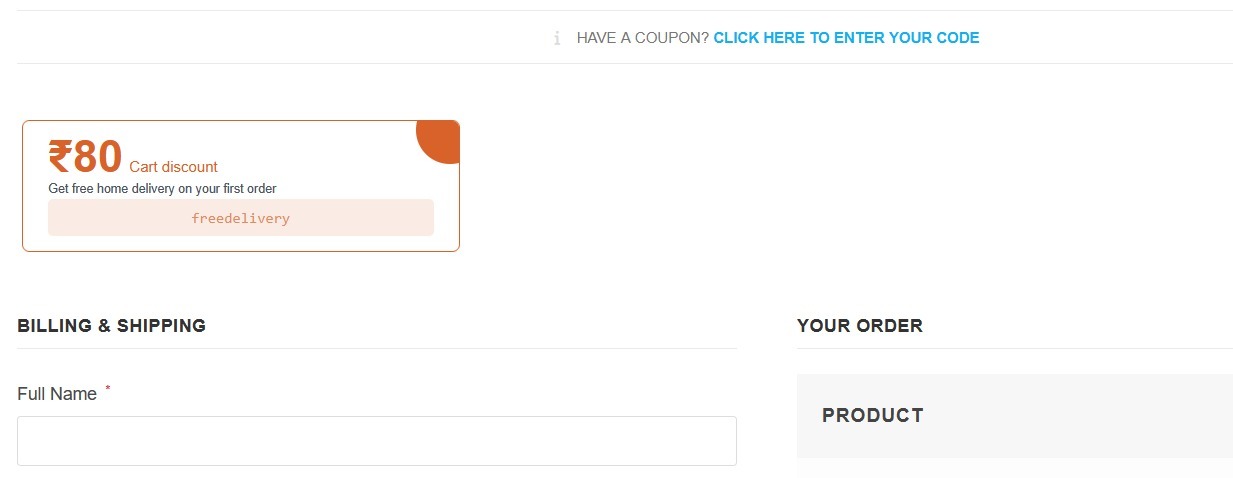
We offer discount coupons for various reasons like First Order, One Week or Month Free Delivery, Refund Coupon etc.. Your available discount coupons are displayed on checkout page and mostly auto-applied. You can also choose coupons of your choice and apply. You find generally available coupons on Coupons Page.
In this article, we will mention the features of this website. So that you can understand our website better and use it accordingly. Before we start, you should understand that an online store has 5 major stages to do your shopping:
(i) Register - First you make your account on the website, by (a) Register Here, (b) Login Here, (c) Forgot Password
(ii) Add to Cart - The second step is: (a) You select the product from product categories (or) search bar, (b) You select weight or quantity (called as variations) which are above or below the product, (iii) and you click on 'Add to Cart'. This adds your product to the Cart (or Shopping Bag)
(iii) Cart - It is the place, where all your added products are displayed. You can (a) increase or decrease the quantity of the product, (b) remove the products, (c) and apply coupon code to avail discount. You can view Cart here.
(iv) Checkout - This is the place where you add your details and confirm order. You can (a) Login to your account, (b) Add your name, mobile number, email and address, (c) Select 'Delivery Date' and 'Time Slot', (d) Create new account, if you are first time user (e) Apply discount coupon (f) Confirm payment method (g) Agree to Terms & Conditions, (h) and 'Place Order'. You can view Checkout Page Here.
(v) Once you click on 'Place Order' in checkout page. You get (a) Order ID, (b) Email Confirmation of your order, (c) Your invoice is generated (d) The delivery team is notified of your order. Your order will be further packed and delivery on the selected delivery date and time slot.
How to use this website ?
Below is the detail description of the features of this website. Which makes your shopping easy and hassle free.
1. Select Preference - Veg & Non-Veg
ZIMME™ website or mobile app starts with one important feature. And that is to Select Preference of Vegetarian Food or Non-Vegetarian Food in the Popup. Once you select the preference of Vegetarian (Veg) Food option, all non-veg options will be hidden from the website. We deliver Veg Preference orders separately to make sure that they do not mix with Non-Veg orders. We value and respect the choices of our customers and take at-most care to fulfill them.
You can also change the Food Preference, by using the switch on left-center of the website, where there are two buttons 'Veg' and 'Non-Veg'. Your Food Preference is also shown on your 'my-account' page. Further, when you place an order, your food preference is shown in your confirmation email and also on the invoice. So the delivery executives take at-most care to make sure that Veg Preference orders are never mixed with Non-Veg orders.
2. Register / Login
The second step to use this website is to register. You can click on 'Login' in Main Menu (or) Click on 'Menu' on the top right in Mobile App and then go to 'Login'. On this page, you have option to Login & Register. If you are the first time user, then click on 'Register', fill the small form like username, email, phone number, password and click on 'Register'. You will be now successfully registered and ready to make the orders or use the forum.

Once you are registered, you can use the same username and password to login into the website. Incase you forget the login details, you can use the 'Forgot your password?' link to reset your password by entering your registered username or email. You can also click here to Register and click here to reset your Forgot Password
3. Product Categories
We have arranged products in respective Categories and Sub-Categories to make your shopping easy. You can find Product Categories in Main Menu, on Home Page, in the Sidebar of every page, and in the bottom of page in mobile view. You can always select the category and 'Add To Cart' the products of your choice.

4. Product Variations
To make your shopping easy, we have made Products with variations like Weight & Quantity, based on the usual purchase trends of the customers. Every product is measured in different quantities like 250 grams, 1/2 Kg, 1 Kg etc.. which are called as product variations. These variations are shown above or below the product, so that you can easily select them and place the order. By default the lowest weight or quantity is selected. You can change it to the quantity of your choice.
If the quantity you desired is not available in the variation, then you can simply add more quantity in Cart Popup (or) cart page. When you add a product, an automatic Cart Popup comes up. For example, you need milk of 3 litre. But in the variation, the maximum quantity is 1 Litre. You select 1 Litre and click on 'Add to Cart'. Now a Cart Popup opens on the rights side of the website or mobile app. In this Cart Popup or Cart Page, you can add 2 more Litre but clicking on the + sign for 2 times below the product. The 1 Litre variation is now changed to 3 Litres as shown in the image below
5. Products Search
We have built a robust Product Search to ease your search for products on our website. Simply type the name of the product you are looking for, and you will get all the products and variations related to that product. Simply choose the product you want and click on 'Add' button. Your product is now directly added to cart. If you want more quantity of the same product click again on 'Added' button, each click increases one quantity. You can check and adjust quantity by clicking on the Cart icon button in the bottom right of this website.
6. Discount Coupons
We offer discount coupons for various reasons like First Order, One Week or Month Free Delivery, Refund Coupon etc.. Your available discount coupons are displayed on checkout page and mostly auto-applied. You can also choose coupons of your choice and apply. You find generally available coupons on Coupons Page.